
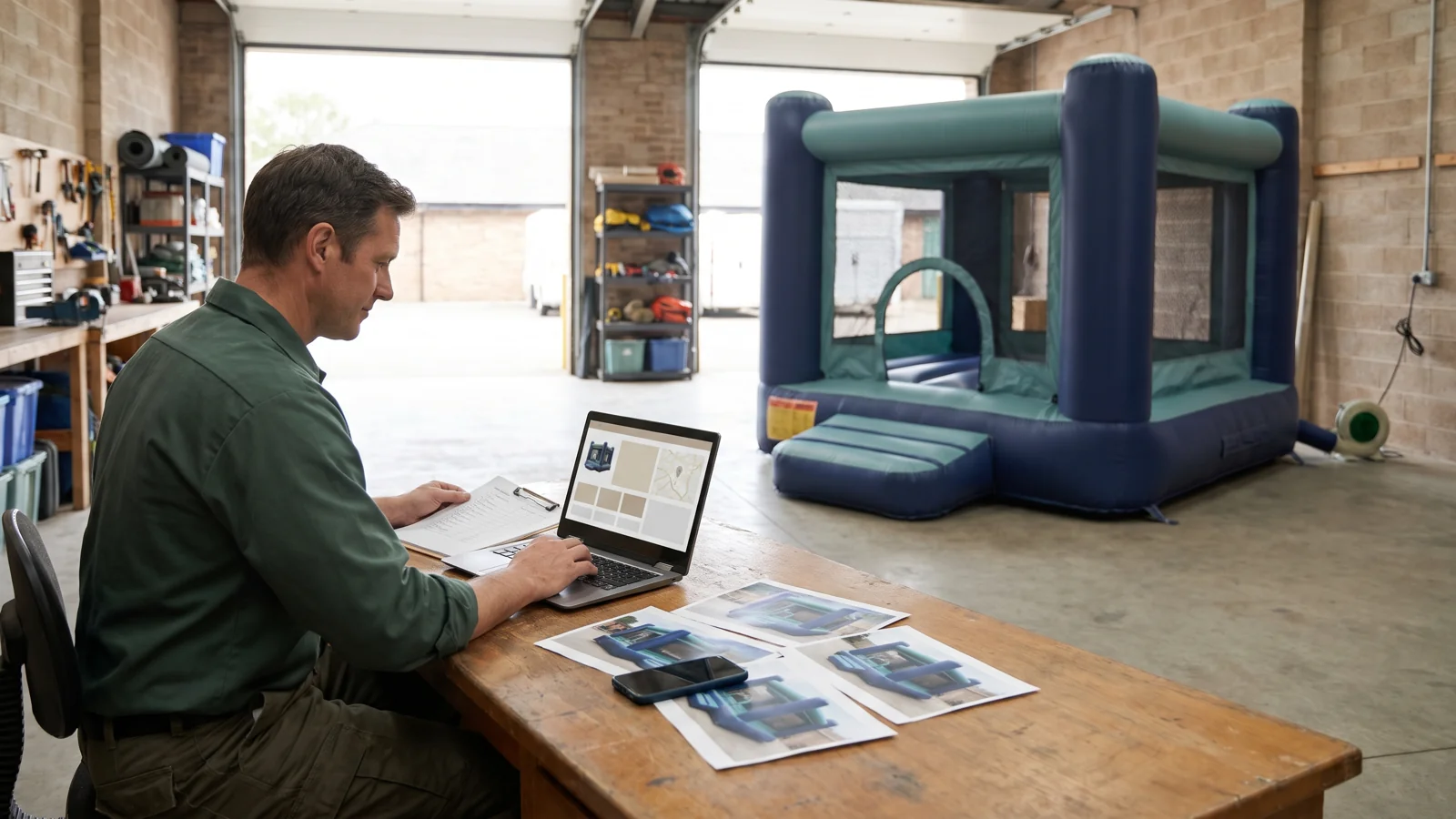
A Google Business Profile for a bounce house rental business should describe the operation customers can actually hire: who provides the service, where the crew works and how to contact the business. Prepare those facts before entering them into the profile. A city on a delivery list, a supplier’s equipment photo or an enquiry button does not establish that a rental is available.
This guide provides a setup check for operators delivering and installing commercial inflatables at customer venues. For the wider decisions involved in starting an operation, use our commercial inflatable rental startup guide. Here, the task is to prepare an accurate business listing and check the route from that listing to your own service.
Start with the real service model. Google’s business eligibility guidance requires qualifying businesses to make in-person contact with customers during their stated hours. An operator visiting customers to deliver and install equipment may fit that model; an online-only business does not qualify simply because it has a website.
Search Google Search and Maps for your actual business before creating a profile. If a listing already exists, follow Google’s claim or access process rather than creating a duplicate. Work through an account authorised to represent the business. This is a setup task for your current operation; acquiring another company and transferring its digital accounts requires a separate review.
Complete the verification process offered in your profile. Google determines the available methods, so do not plan around a guaranteed postcard, phone call or video option. Follow the current verification instructions and keep any unresolved requirement visible in your preparation record.
Use the name customers know from your business materials. Do not add a list of towns or “best bounce house rentals” to the name merely to target searches. Google’s representation guidelines require accurate business details and restrict unnecessary additions to names. Use customer-facing hours that reflect the operation and follow the applicable guidance for appointment-only or seasonal businesses.
Then decide whether customers are genuinely served at your address. A warehouse used only to store, clean and load inflatables is not automatically a customer-facing storefront. For a delivery-only operation that does not serve customers there, Google says to remove the address from public display and use a service area. A business that also serves customers at an eligible location may have a hybrid setup.
Enter the cities, postal codes or other supported areas you actually serve. Google’s service-area guidance currently permits up to 20 areas and says the overall boundary should generally remain within about two hours’ driving time of the business base. These are profile guidelines, not a recommendation to accept every job within that boundary. Your delivery capacity can be smaller.
For example, a crew may serve a neighbouring town for selected events without offering unrestricted delivery there. Keep the website’s delivery conditions clear. Do not create a separate profile for every town or use a virtual address to suggest a location you do not operate.
Select the available primary category that most accurately describes the business. Google’s category guidance says to choose from its provided list; you cannot create a category. Use a small number of relevant additional categories rather than one for every inflatable you own. Confirm the choices shown for your region instead of copying another operator’s category names.
Where the services editor is available, describe services you actually supply. “Bounce house delivery and setup” should mean that your business provides those tasks, not that a manufacturer sells equipment suitable for them. Google’s services guidance explains the editor and its restrictions. Do not assume every business has the same features.
Use the business description to explain your operation plainly, with the services and practical details customers need. Keep promotional claims out of the name, and place website links in their designated fields rather than in the description.
Prepare photographs of the equipment and service you genuinely offer. Check that the pictured configuration matches the description and that you have permission to publish the image. Avoid exposing customer details or identifiable children without appropriate permission. A supplier image must not imply that a model is already in your rental fleet or available for a particular date.
The website and telephone details should lead to your actual business. From a phone, open the proposed destination page and check the business identity, service area, equipment information and contact route. Confirm that the page explains whether the next step is an enquiry, a request for availability or a completed booking.
Use a booking or other action link only where it is supported for your profile and the destination performs that action. Review Google’s local business link instructions; do not assume that every rental profile receives an appointment button or the same provider integrations.
If your website accepts a request before staff confirm the equipment and venue, label that step accordingly. A successful form submission should not appear to reserve a unit unless the actual process does so. Check any third-party destination displayed on the profile as well as links you added yourself.
If choosing the underlying system is still unresolved, our inflatable rental software selection guide covers that separate decision. The profile setup check only needs to establish where the customer goes and what happens next.
Keep one working sheet for the proposed profile. Fill the current-value column with your own information and give every unresolved item an owner. The evidence column should identify the source you checked, not contain private customer data or account credentials.
| Field | Current value | Evidence to check | Open question | Owner |
|---|---|---|---|---|
| Eligibility and existing listing | Record service model and listing | Actual in-person service; existing profile search | Eligibility or access unresolved? | Assign |
| Business name | Enter proposed name | Consistent real-world business materials | Extra keywords or towns added? | Assign |
| Address and service area | Record display choice and areas | Customer reception arrangements; actual delivery coverage | Does the listing overstate the operation? | Assign |
| Hours and categories | Enter applicable hours and selections | Customer-facing arrangements; current category list | Seasonal or category details unclear? | Assign |
| Services and photographs | List planned entries and files | Actual fleet and service scope; image permissions | Unsupported availability or service claim? | Assign |
| Website and contact route | Record URL and telephone | Mobile page and contact-path check | Enquiry or confirmed booking? | Assign |
| Verification and visible result | Record status and check date | Profile status; public listing when available | Pending edit or requirement? | Assign |
After verification and relevant edits are accepted, review what customers can actually see on Search and Maps. Compare the visible name, address treatment, service information and links with your sheet. Record pending items without treating them as approved.
When performance data is available, use the definitions in Google’s performance documentation. A call metric counts clicks on the call button, not completed conversations. Website clicks are not confirmed rental orders. Keep enquiries and bookings in your own records, with their dates and outcomes. Available metrics vary, and the performance report can include interactions from organic results and Google Ads.
Google describes local results in terms of relevance, distance and prominence in its local ranking guidance. Completing this checklist does not promise a ranking position or number of customers. Its purpose is to make the listing accurate and the next step understandable.
Keep equipment purchasing separate from local rental enquiries. If you are expanding the operation itself, compare commercial inflatable castles and bounce-and-slide combos against your actual service requirements. These are equipment purchasing pages, not booking links for your local rental business.